
Converting text to outlines turns the letters into shapes you can edit as artwork. It also changes how you can revise the wording. Before converting a production file, keep a separate master with the text still editable.
That two-file habit is useful for a sign, a display graphic, or another piece of lettering you may need to change later. The production copy serves the immediate output. The master preserves the wording and typography controls for the next revision.
What changes when text becomes shapes?
Adobe’s Illustrator on the web guidance explains that outlined text loses its text properties and can no longer be edited with text controls. You may still alter the resulting shapes, but that is a different job from placing a cursor in a word and correcting it.
Don’t confuse outlining with adding a visible border around live text. The relevant conversion changes the text object itself. Check the command and documentation for the application and version you use.
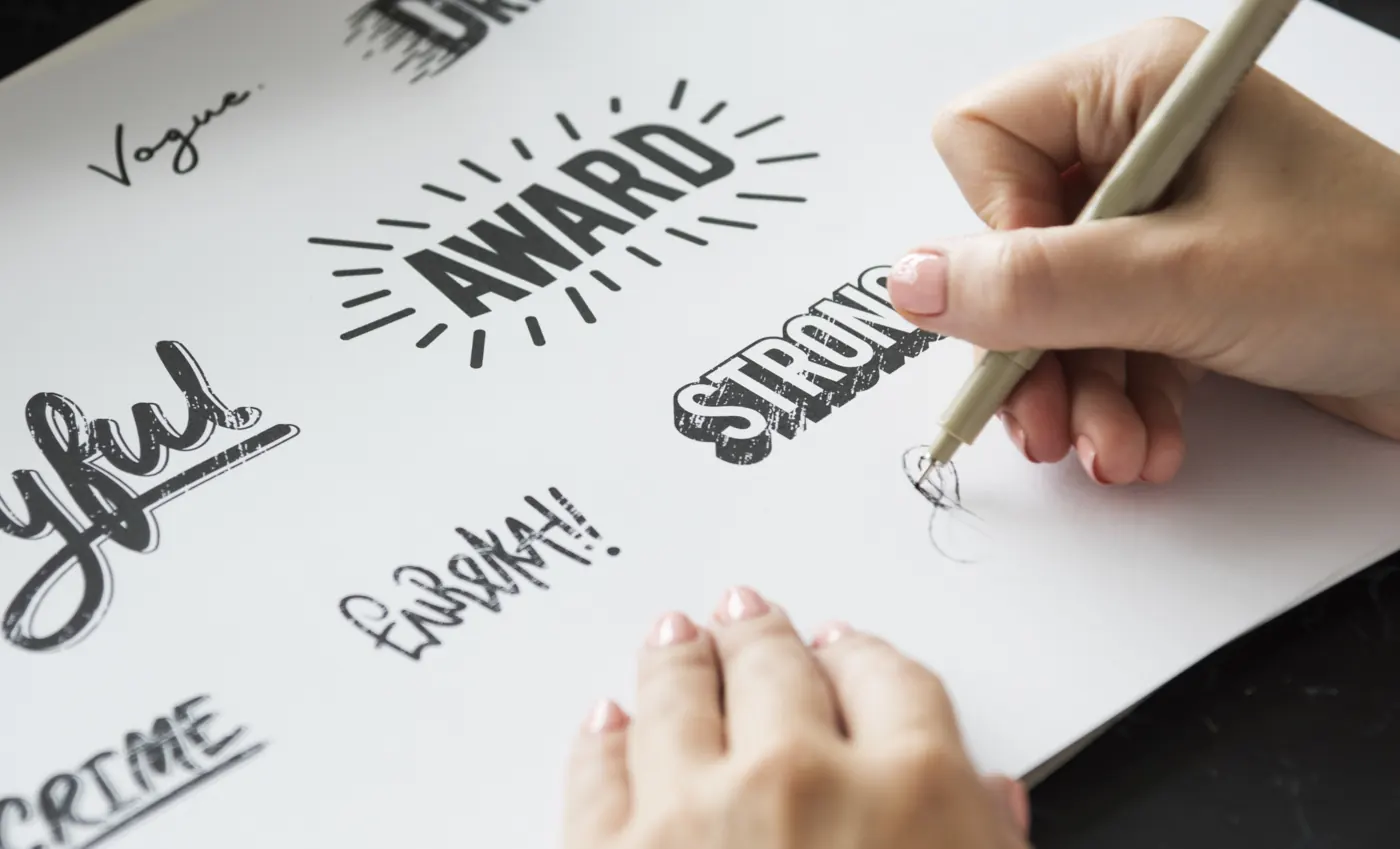
Review the letters as words before treating them as artwork. Check spelling, punctuation, capitalization, dates, and names. A distinctive letter shape can draw attention away from an ordinary typo until the file reaches production.
Save two versions with different jobs
| File | Keep in it | Use it for |
|---|---|---|
| Editable master | Live text, the approved wording, and the design information needed to revise it | Corrections and future versions |
| Production copy | The version prepared to the receiver’s or tool’s stated requirements | The particular output you have approved |
Use names that make the relationship clear. A project name, version, and a word such as “master” or “outlined” are enough if they are used consistently. Keep both files together, with the output copy visibly distinguished from the source.
Record the font name and relevant project permissions with the source files. Adobe’s InDesign outline guidance notes that some external fonts may restrict outlining. Check the font’s own terms rather than treating a successful conversion as permission for every use.
Convert a copy, then inspect it

In Illustrator on the web, Adobe documents selecting the text and using the Outline text command from the Type controls. Other applications can use a different command or location. Follow the instructions for the software in front of you instead of assuming a shortcut from another version will do the same thing.
After conversion, compare the copy with the approved master. Check that the intended text was converted, that the arrangement still matches, and that no important element disappeared or shifted. Reopen the export you intend to send, not just the working document from which you made it.
Outlining is one preparation step. It doesn’t establish that every shape is suitable for a particular cutting or printing process. Keep the receiving system’s requirements beside the file, and review its own preview before approving output.
Check at the size that matters

Adobe’s InDesign guidance also notes that outlined text loses font hinting and can appear less sharp at small sizes or on low-resolution output. Don’t assume that conversion improves every kind of text in every document.
For a printed piece, inspect a representative proof at the intended size. For another production method, use the appropriate preview or sample process for that equipment. Keep any result tied to the actual file and version; a good-looking screen view isn’t a physical output test.
Make corrections in the master
If the wording changes, return to the live-text master, make the correction, and prepare a fresh production copy. That keeps the source and output aligned. Editing one file while leaving the other behind creates two competing accounts of what was approved.
Before sending or producing the file, confirm the version, wording, dimensions, and requested format. Then retain the exact output copy with the project. The next person should be able to find both the file that was used and the file that can still be edited.
Source note
This researched workflow guide uses the Adobe references linked above, checked October 21, 2026. Software commands are scoped to the named applications. Stock photographs illustrate lettering, design, and print inspection; they are not screenshots or Replicate Workshop production tests.