

Use an SVG when the job needs editable cut shapes. Use a PNG when the artwork needs to preserve a finished pixel image, such as a photograph or a shaded illustration. The right choice depends on what the machine should do, not which preview looks sharper in a download folder.
A file can look ready on screen and still contain the wrong information for the next step. Before buying material, open it in the software you’ll actually use and inspect the imported result.
Start with the finished object
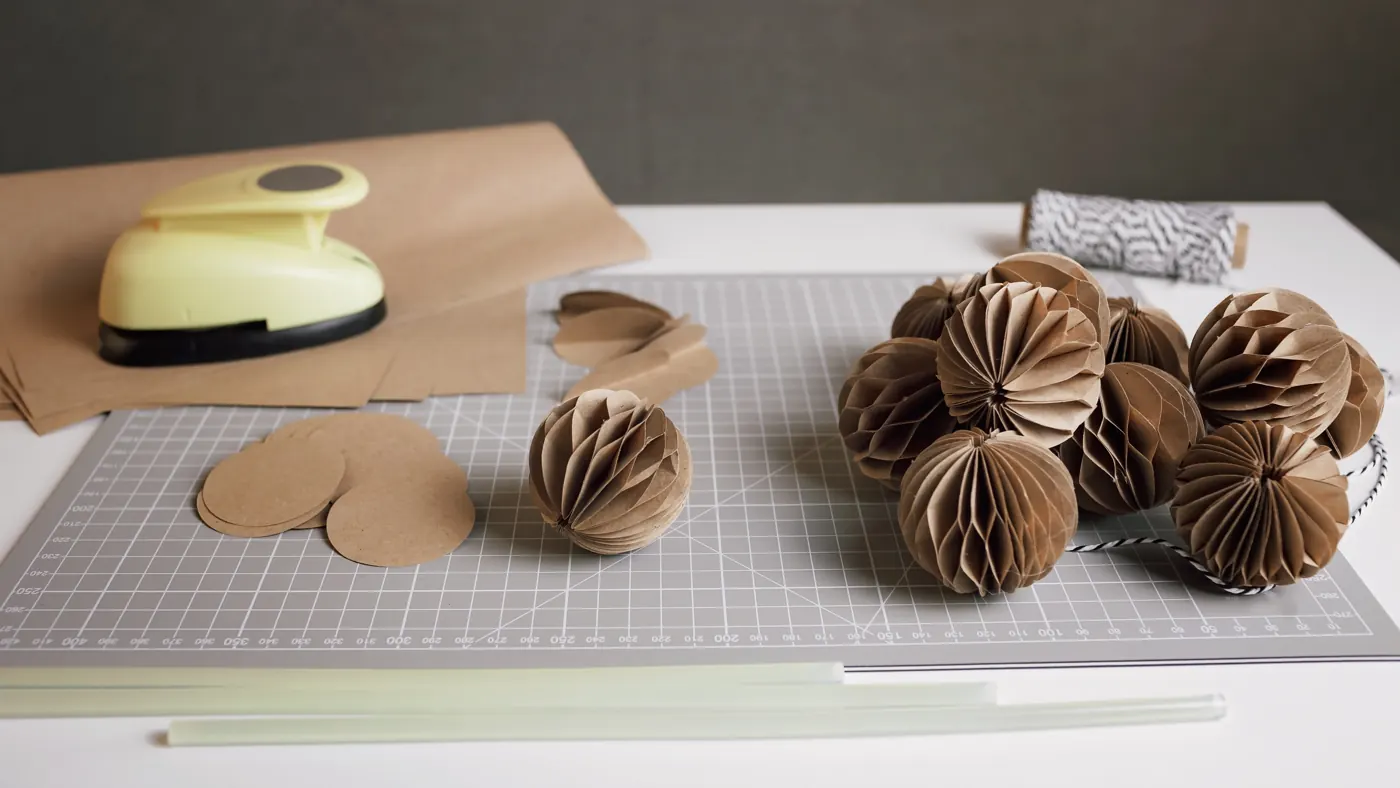
For layered paper lettering, the useful information is the outline of each piece. For a printed sticker with a photograph inside a border, the useful information includes the printed image and the line the machine should cut around it. Those are different jobs, even if both start with the same illustration.
Cricut’s image-upload instructions distinguish raster uploads, including PNG files, from vector uploads, including SVG files. That distinction helps explain why an image may need cleanup or a different import choice before it becomes the cut you intended.
What each format gives you
| Your project needs | Useful starting point | What to inspect |
|---|---|---|
| Separate shapes cut from different colors | SVG with suitable vector shapes | Layers, outlines, and final dimensions |
| A photograph printed inside a cut border | PNG in a compatible print-and-cut workflow | Print quality, background, and outer boundary |
| Simple lettering cut from one material | Vector lettering prepared for the cutting software | Letter openings, disconnected parts, and size |
| A small screen image enlarged into a sign | Better source artwork before export | Actual detail, not just the filename extension |
SVG is a container for scalable graphics, but the extension doesn’t guarantee that every part of the file is a clean cut path. An SVG can include content that your cutting software doesn’t support. PNG stores pixels; changing its filename to end in SVG doesn’t turn those pixels into editable shapes.
For the underlying distinction, Inkscape’s vector and bitmap explanation is a useful reference.
Check what survives the upload
Cricut’s unsupported-items guide identifies issues such as pattern fills, clipping paths, editable text, and unsupported embedded images. A design that depends on one of those features may need preparation in the original design program.
Keep an editable master before making an export copy. If text must become outlines for a particular workflow, make that change in the copy. The master should still let you fix a name or edit the wording without rebuilding every letter.
Don’t treat a successful upload as a successful project. Look for duplicate outlines, missing letter centers, unexpectedly filled shapes, and loose pieces that won’t stay connected after cutting. Compare the imported size with the physical space the object must fit.
Make one small, useful check
Before committing to the final material, choose the part most likely to expose a problem: a small letter, a narrow gap, or the join between two shapes. Use material and machine settings approved for your equipment. A paper check can help with appearance and dimensions; it won’t prove how another material will cut.
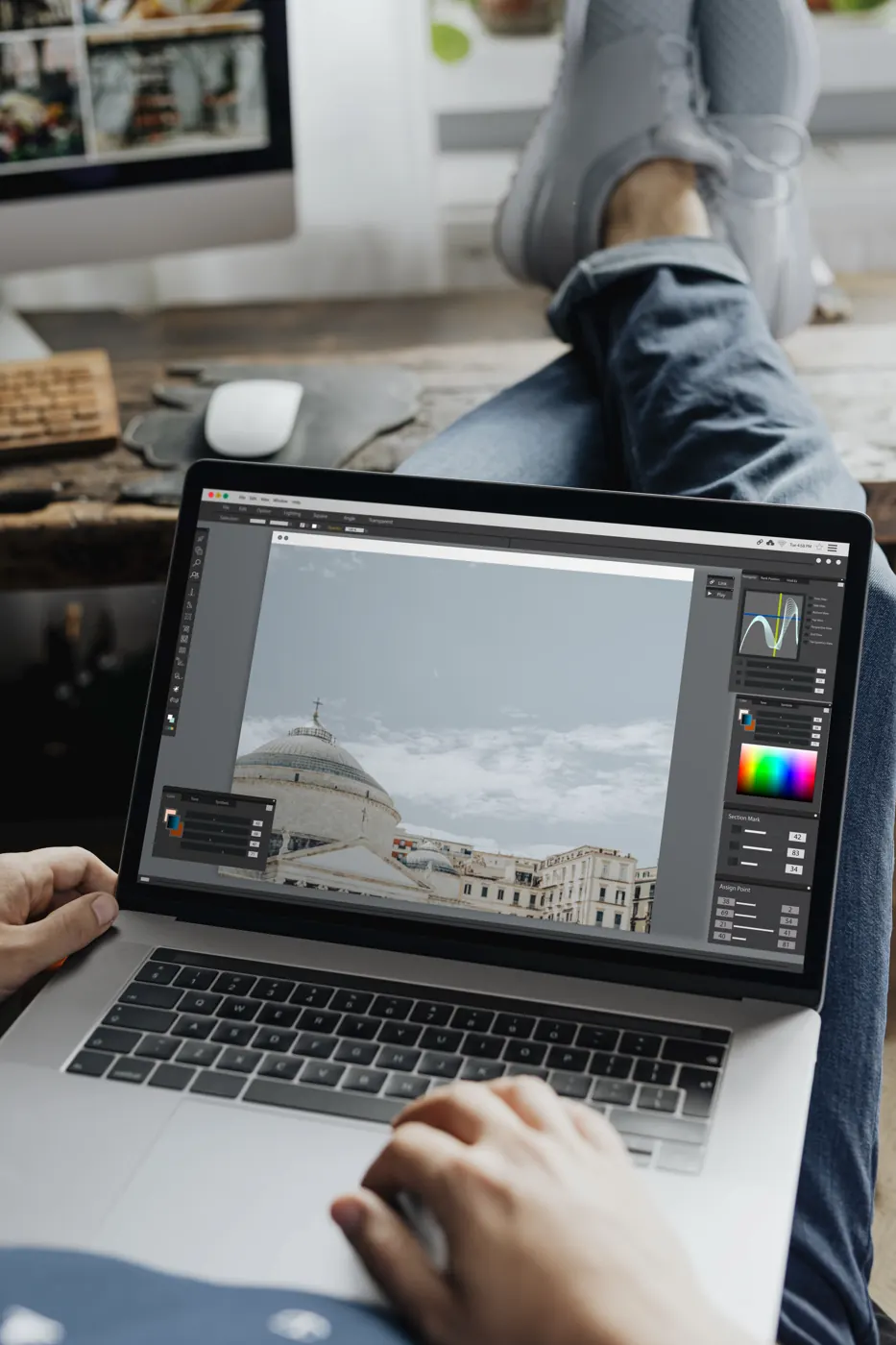
Name the export so you can distinguish it from the master, then record its intended size and use. A short note such as “single-color cut, 6 inches wide, outlines prepared” is more useful than several files called final.
If you’re developing an original display, our Workshop articles provide related making projects. Keep source credit and any file permissions with your own project notes so that the origin remains clear when you return to it.
Choose the format at the point where you know the job: shapes to cut, pixels to print, or both in a supported workflow. Then judge the imported file, rather than trusting the thumbnail.
Source note
Researched file-preparation guide. Official software documentation checked October 21, 2026. Follow the current instructions for your app and machine. Stock photographs illustrate design and paper preparation; they do not document a Replicate Workshop cutting test.