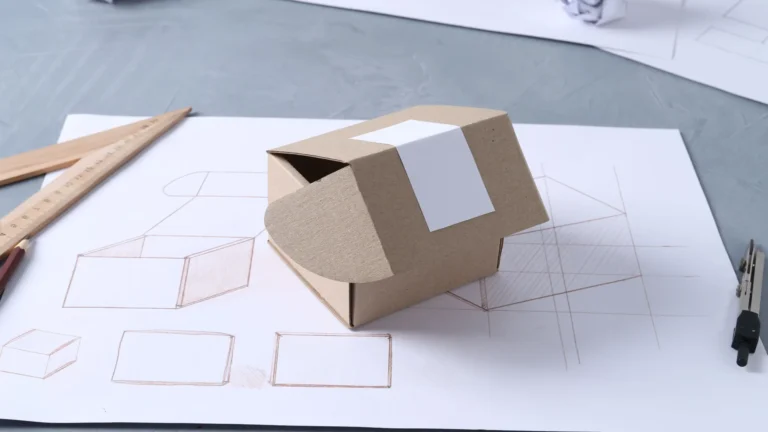
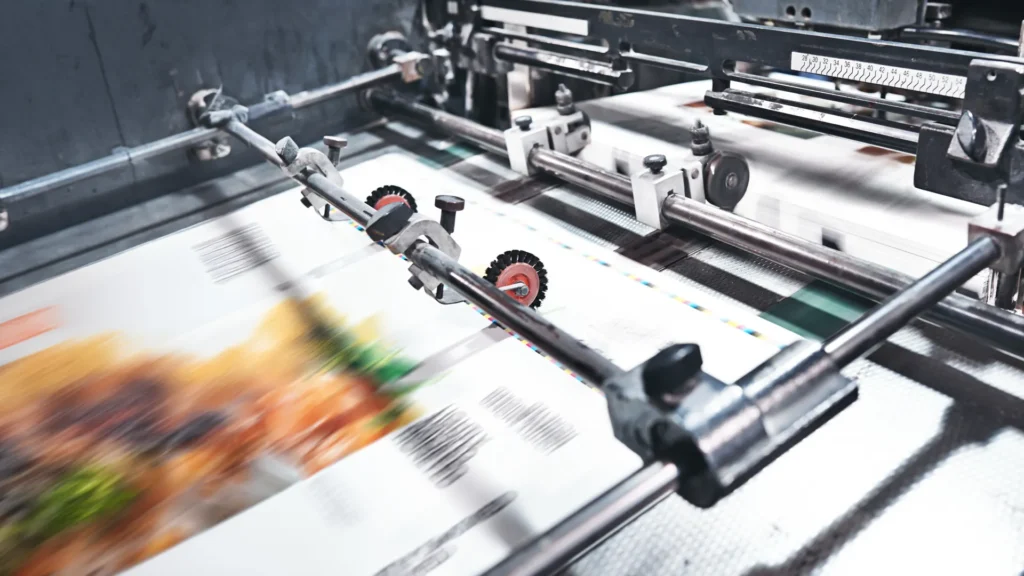

A background can reach the edge of a finished print even though the artwork extends past that edge in the production file. That extra artwork is bleed. The marks showing where the sheet should be cut are crop marks. Registration marks help align color separations.
They solve different problems. Before adding any of them, get the print provider’s instructions for the actual job. A file with every marks checkbox selected isn’t automatically a better handoff.
Read the terms by their job
| Term | What it does | What to confirm |
|---|---|---|
| Bleed | Extends artwork beyond the finished trim edge. | How much is required, and on which edges. |
| Crop or trim marks | Indicate the intended cut positions. | Whether the provider wants them in your PDF. |
| Registration marks | Provide targets for aligning color separations. | Whether they belong in the supplied file. |
Adobe’s Illustrator reference on printer’s marks and bleeds describes these functions and advises asking the print shop about the bleed needed for a particular job. Keep that job-specific instruction with the file.

Start with the finished dimensions

Write down the size someone should hold after trimming. Then record the bleed requirement separately. Adobe explains that increasing bleed reveals more artwork beyond the trim marks; it doesn’t change the finished area those marks define.
As a simple arithmetic example, suppose the finished piece is 5 by 7 inches, and the provider requests 0.125 inch of bleed on every edge. The artwork must cover 5.25 by 7.25 inches, because the extra amount is added on both sides of each dimension. The finished piece is still 5 by 7 inches. These numbers illustrate the calculation, not a universal print specification.
Label the two sizes in your notes. “5 by 7, plus the specified bleed” is less ambiguous than sending a message that only says “make it bigger.” If the provider supplies a template, confirm which boundary represents the finished edge before placing the design.
Carry the background into the bleed
Adobe’s InDesign bleed tutorial shows artwork extending beyond the document edge so it can cover the finished piece after trimming. Merely turning on a bleed setting doesn’t supply missing artwork outside the page.
Inspect each edge of the composition. A photograph cropped exactly at the finished boundary needs enough image beyond it. A background color needs to continue there, too. Ask the provider for its separate guidance on keeping essential text and details away from the cut. Don’t treat the outside bleed allowance as an inside safety margin.
For image quality, also check the relationship between pixel dimensions and print size. Adding a larger page boundary doesn’t add detail to a small image.
Check the exported file

The document setup and the delivered PDF deserve separate checks. Adobe’s InDesign tutorial includes bleed settings in the PDF export process and recommends the print provider’s PDF preset. Use the instructions for your application and the provider’s requested output.
Open the exported file rather than assuming it matches the working document. Compare the trim size, visible edge artwork, orientation, and requested marks with the handoff instructions. Keep the editable source alongside the exported production version, with filenames that distinguish them.
Before sending it, collect these answers in one place:
- What are the finished dimensions and orientation?
- What bleed is required on each edge?
- Which marks should the supplied file contain?
- Which PDF preset or export specification should you use?
- Does the exported file match those answers?
If one answer is missing, resolve that question with the provider before treating the file as ready. That is a more useful final check than adding marks whose purpose you can’t identify.
Source note
This researched guide uses the Adobe references linked above, checked October 21, 2026. The size calculation is an illustrative example. Stock photographs show printing, trimming, and proof inspection; they do not document a Replicate Workshop production test.