
An image can look fine in a small preview and still be a poor choice for a larger print. Before changing an export setting, check two things: the image’s pixel dimensions and the physical size it will occupy on the page.
Pixels per inch, or ppi, connects those numbers. The calculation tells you how densely the available pixels will be placed. It doesn’t certify that the source photograph is sharp or that the finished print will look good.
Work through one example
Suppose your cropped image is 2400 × 1800 pixels. This is a calculation example, not a tested file.
| Printed size | Width calculation | Result |
|---|---|---|
| 8 × 6 inches | 2400 pixels ÷ 8 inches | 300 ppi |
| 12 × 9 inches | 2400 pixels ÷ 12 inches | 200 ppi |
| 16 × 12 inches | 2400 pixels ÷ 16 inches | 150 ppi |
The same pixels cover a larger area as the print gets bigger. Check both dimensions if the crop and intended print have different proportions. Adobe’s printed-resolution explanation describes this relationship between pixel count, physical size, and ppi.
Use the image after the crop
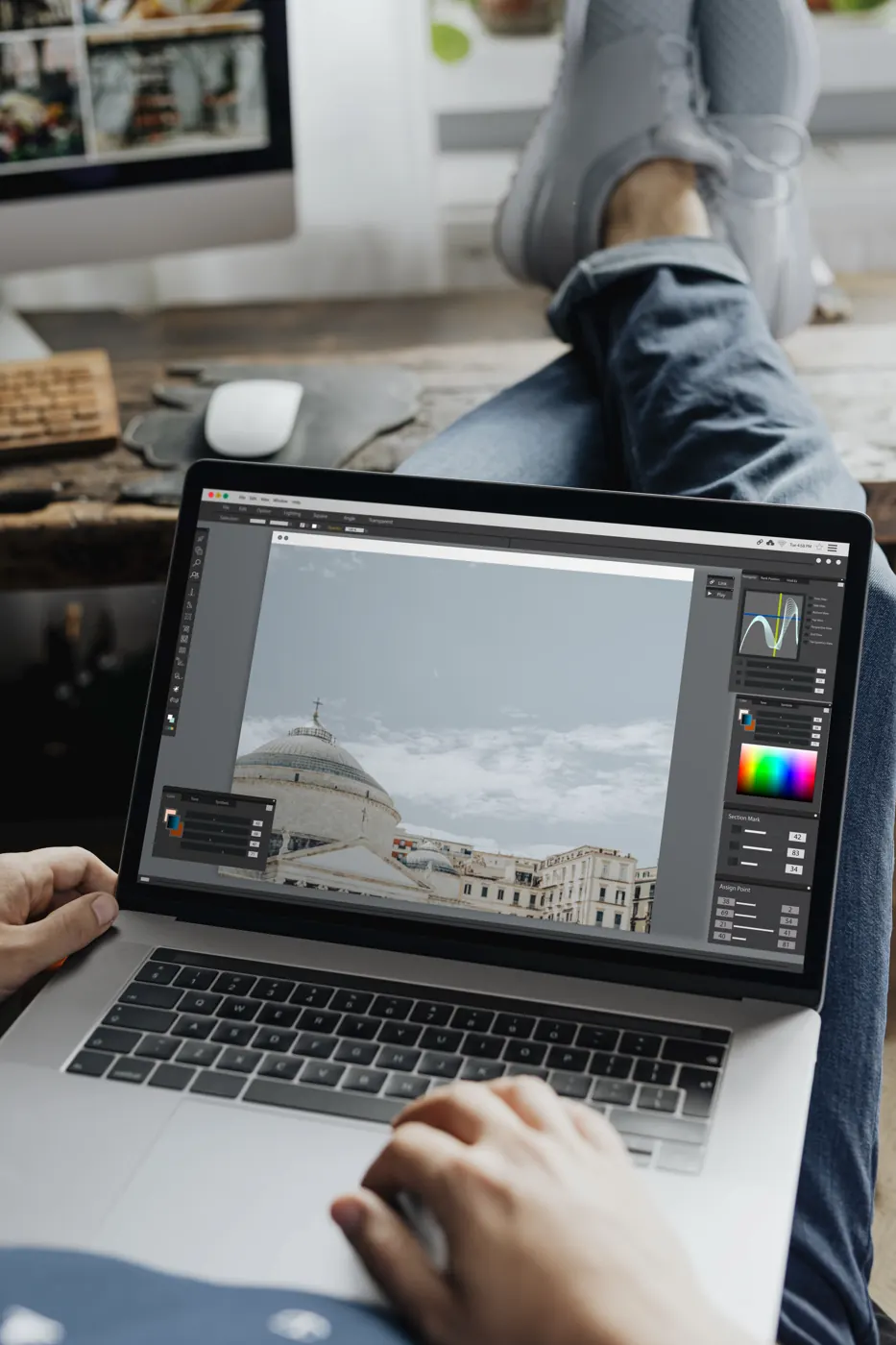
Cropping changes what remains available. A large original doesn’t help if the tiny portion you keep lacks enough pixels for the intended use. Check the cropped file or the effective resolution of the placed image in your layout.
Ask your print provider for its requirements. Adobe calls 300 ppi a common standard for close-viewed prints, while noting that viewing distance affects what larger prints need. Treat the provider’s actual specification as the target for that job.
Changing the number isn’t restoring the detail
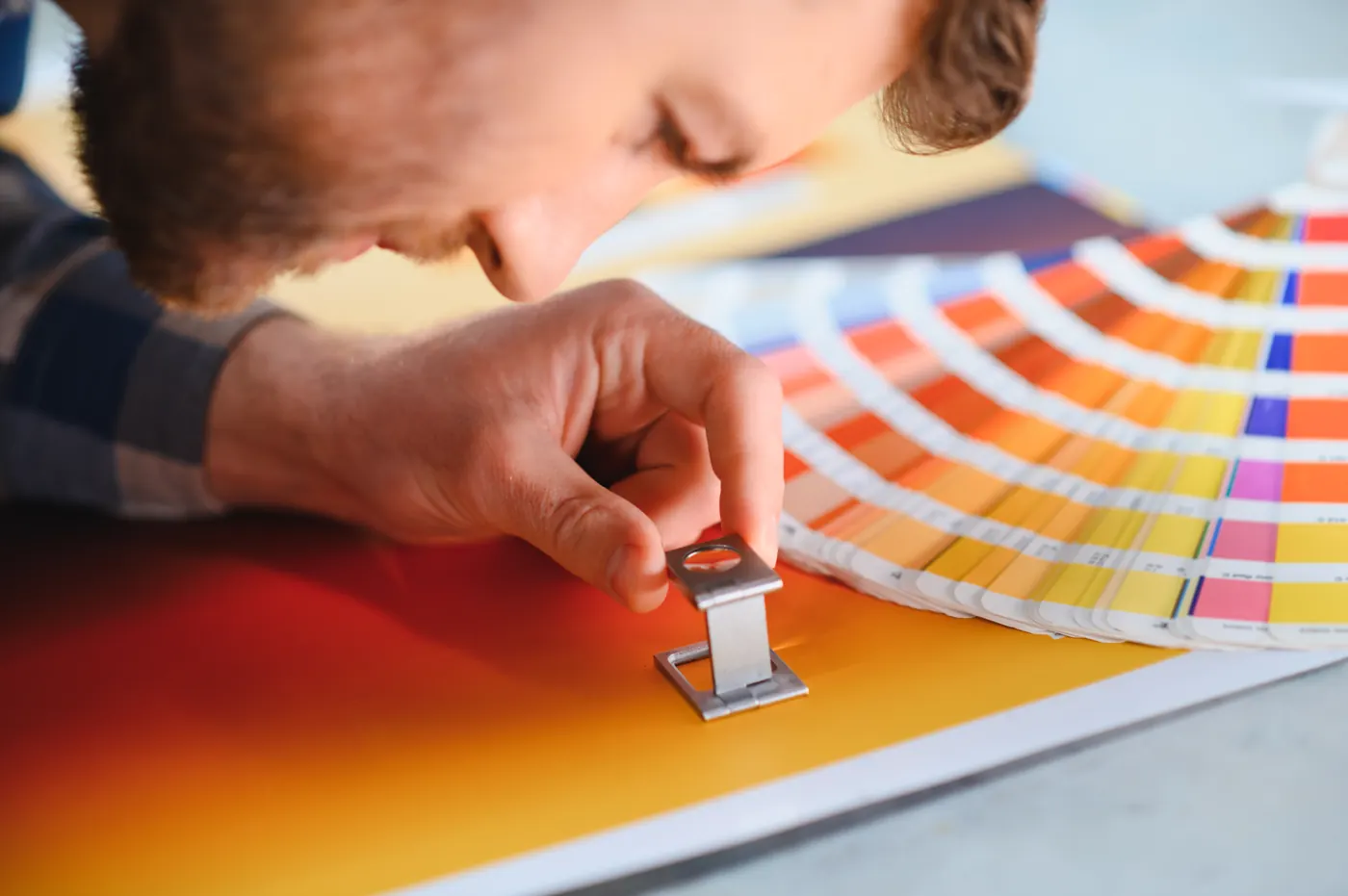
Changing a resolution setting without resampling redistributes the existing pixels over a different physical size. It doesn’t create a sharper original. Resampling changes the pixel count; enlarging that way asks the software to estimate additional pixels.
Adobe’s resizing and resampling guide explains the difference. Keep the original master and work on a copy so an experiment doesn’t replace your best source.
Make a small proof of the actual detail
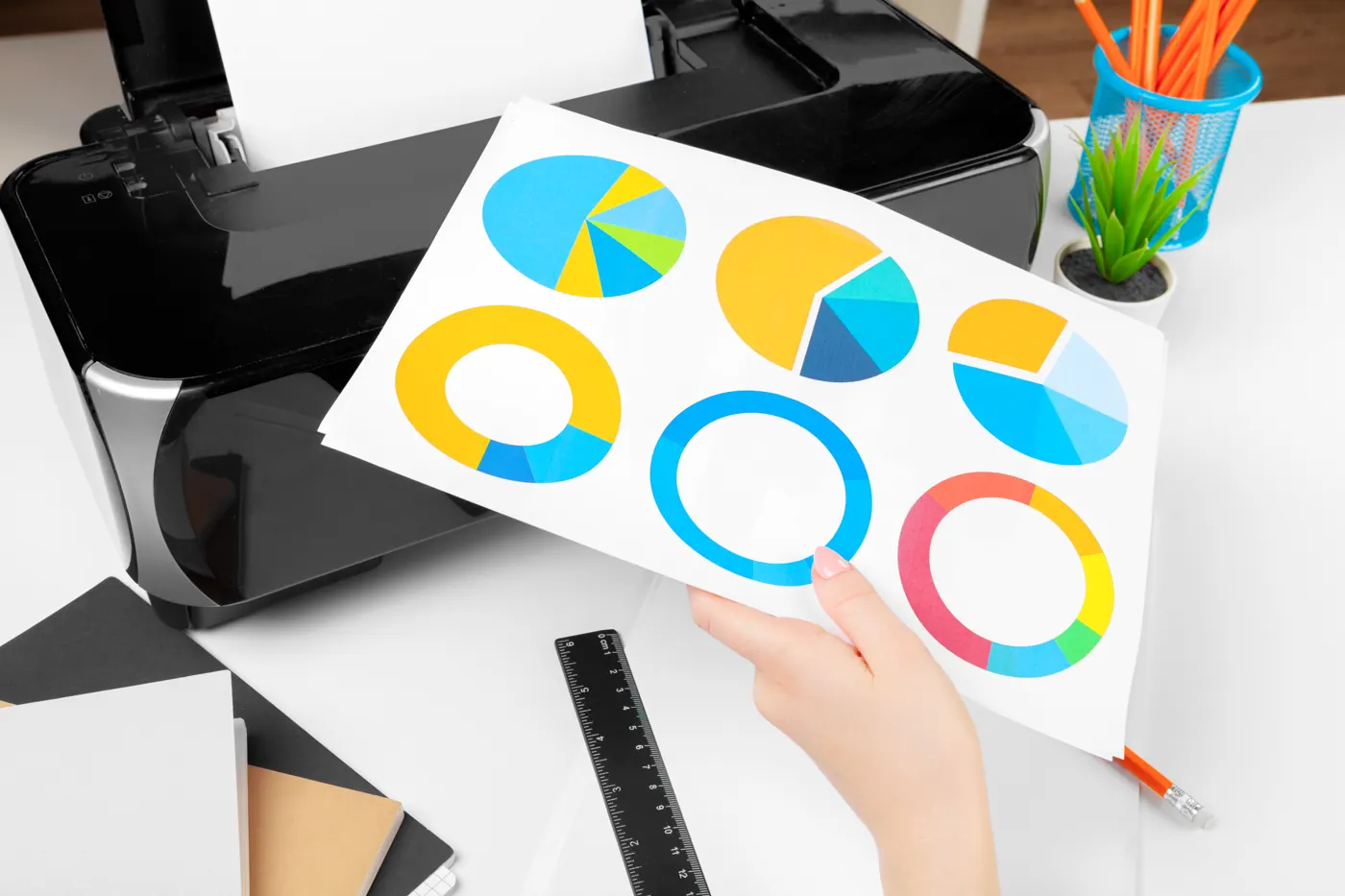
Before committing to a batch, print a representative section at the intended final scale. Include a fine edge, important text, or a detailed area that matters to the design. A miniature of the whole page answers a different question because it makes those details smaller.
Check the print settings for scaling. A proof printed with “fit to page” may change the size you meant to inspect. Compare the output with the size recorded in your file, then note the paper, printer, and settings used.
Use our workshop build-log template to keep that record with the source and export. Resolution is one useful check. The proof is where you decide whether the actual result suits the project.
Source note
This researched guide and original arithmetic example use Adobe references checked October 21, 2026. The photographs illustrate editing, inspection, and printing; they are not Replicate Workshop print tests.