
Keep the unit beside a dimension when moving it from a drawing into a design file. “20 mm” and “20 in” are different lengths, even though the number is the same. Re-entering a bare number in a field using another unit changes the meaning of the measurement.
Before editing a purchased pattern, downloaded model, or shared drawing, identify its intended units and check a known dimension in the application where you’ll use it. Don’t infer the scale from how large the object looks on screen.
Convert the length, not just the label
NIST defines one inch as exactly 25.4 millimeters. To convert inches to millimeters, multiply by 25.4. To convert millimeters to inches, divide by 25.4.
The following are calculated examples, not measurements from a finished part:
| Original dimension | Equivalent length | Calculation |
|---|---|---|
| 1 in | 25.4 mm | 1 × 25.4 |
| 3/8 in | 9.525 mm | 0.375 × 25.4 |
| 10 in | 254 mm | 10 × 25.4 |
| 20 mm | About 0.7874 in | 20 ÷ 25.4, rounded here to four decimal places |
Typing 20 into an inch field produces 20 inches, or 508 mm. It doesn’t convert a 20 mm dimension. Preserve both the value and unit when copying information between a drawing, notes, and software.
Check what the application is using

Look at the units attached to dimension fields and the document settings before entering values. Software may have different controls for different kinds of measurements.
For example, Adobe’s Illustrator ruler documentation describes separate unit preferences for general measurements, strokes, and type. It also allows unit abbreviations such as in or mm when entering values to override the default unit.
Use the instructions for the actual application and field you’re editing. After a change or import, inspect a known width or height and compare it with the source drawing. A document setting is useful information; the object’s displayed dimensions still deserve a check.
Keep changing the measurement unit and deliberately resizing the object as separate decisions. If your goal is only to work in a more familiar unit, you still want the intended physical length to match the drawing afterward.
Keep the original precision visible

An exact conversion doesn’t establish how accurately a physical part was measured or made. It also doesn’t decide the tolerance a design needs.
The 3/8-inch example converts to 9.525 mm. Writing 9.5 mm instead rounds it down by 0.025 mm. Whether that difference matters depends on the design’s requirements. Don’t silently replace the original dimension with a convenient rounded value and assume the project allows it.
When a rounded value is useful for discussion or a rough comparison, label it as approximate and keep the original dimension available. When making or ordering a part, use the actual specification and its stated tolerance rather than inventing one from the number of decimal places.
Carry the check through to the output
Include units on the dimensions in the drawing and in the relevant entries of the cut list. If a dimension has been converted, retain enough information to trace it back to the original.
For a paper pattern, check the printed reference dimensions too. The actual-size printing guide covers that final step. A correctly converted number in the file won’t reveal that the print dialog later fitted the page to a different size.
References
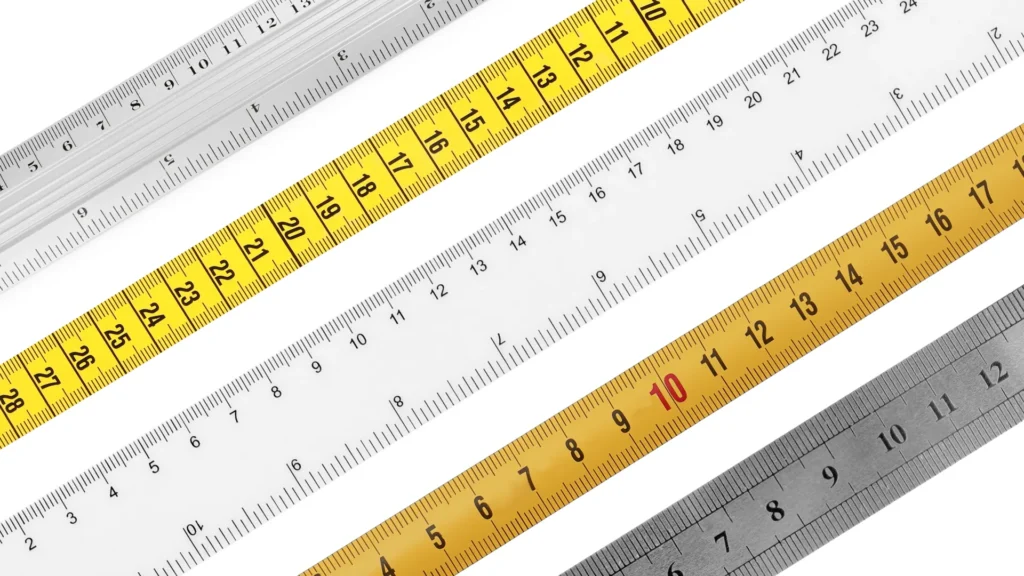
NIST’s length reference and Adobe’s Illustrator ruler documentation checked October 21, 2026. Calculations are original examples; photographs illustrate measurement and design tools, not measured results from a Replicate build.