
“Make it CMYK” isn’t a complete print instruction. You also need to know which profile and output conditions the file is meant for, and whether the print provider expects you to convert it at all.
Ask those questions before changing the artwork. Keep an editable master, prepare the requested production version, and check that version against the intended output. A familiar-looking color on a screen is a starting point, not evidence that the printed piece has matched it.
A color mode is only part of the description
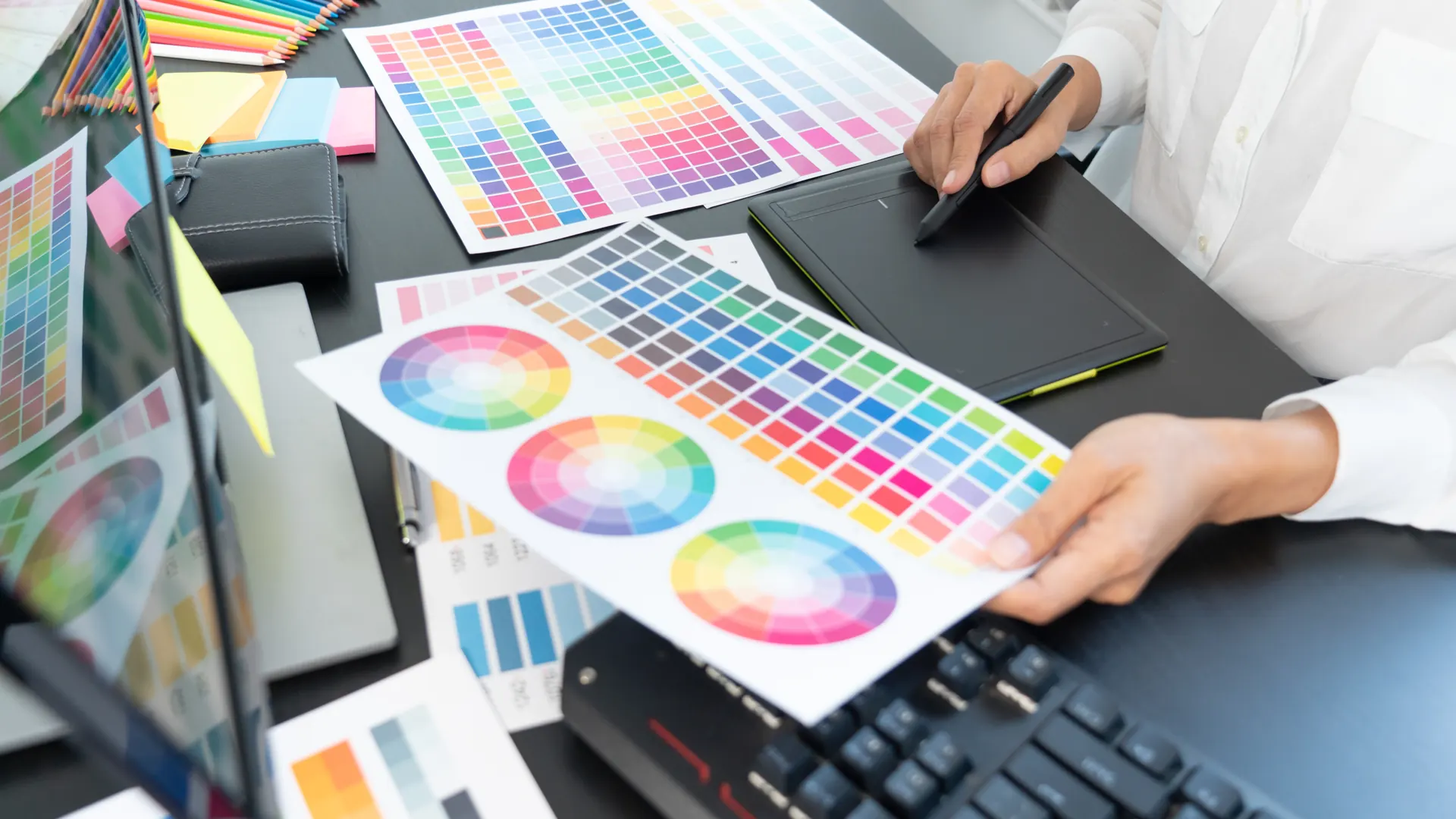
Adobe’s explanation of color profiles distinguishes the document profile from the profiles describing monitors and output devices. The document profile gives meaning to the file’s RGB or CMYK values; an output profile describes the printer’s color range for the ink and paper involved.
That is why a note saying only “RGB” or “CMYK” can leave important information out. Two people may agree on a color mode while assuming different profiles or different print conditions.
Keep these terms separate when discussing the job:
| Term | The question it helps answer |
|---|---|
| Color mode | How is color represented in this document, such as RGB or CMYK? |
| Document profile | How should the document’s color values be interpreted? |
| Output profile | Which printer or press conditions are being described? |
| Proof | What output conditions does this preview or sample represent? |
A swatch name, a number on a screen, and a physical print each need context. When a color matters, keep its specification with the artwork and ask the provider how it will be reproduced.
Get the provider’s requirements first
Adobe’s guide to profiles for print output notes that many online print services require sRGB. That alone is enough to reject a blanket rule that every file sent to a printer should be converted to CMYK.
Ask for the accepted file format, color space, profile, and export instructions for your specific job. If the provider supplies a preset, confirm what it is intended to do. Save the instructions with the project so you aren’t relying on a remembered setting from another printer or paper.
If you’re asked to convert the file, preserve the original master and name the production version clearly. Check the exported file, not just the working document. The bleed and crop-mark guide covers another part of that handoff; correct dimensions and correct color preparation are separate checks.
Know which part of the workflow handles conversion

For desktop printing, Adobe’s color-management instructions describe two workflows: Photoshop manages the conversion, or the printer driver does. The settings for one workflow shouldn’t be combined casually with the settings for the other.
In the Photoshop-managed workflow, Adobe directs users to select the appropriate printer-and-paper profile and disable the driver’s color management. In the printer-managed workflow, the driver handles the conversion instead. Follow the complete instructions for the workflow you choose and consult your printer’s documentation for the controls it uses.
A downloaded profile with a reassuring name isn’t enough. Confirm that it matches the intended printer, paper, and conditions. If you change the paper or output process, revisit that choice rather than treating the previous setup as automatically transferable.
Ask what a proof represents

A proof is useful when you know what it is meant to show. Adobe’s hard-proofing guide describes a desktop print that simulates specified press conditions, and explains that its accuracy depends on the profiles, monitor calibration, and relationship between the proofing printer and the simulated output.
The same guide notes a basic physical difference: monitors emit light, while prints reflect it. Treat the screen preview and physical sample as related views with limitations, rather than expecting them to behave identically in every setting.
Before approving a job, ask the provider what kind of proof it supplies and what that proof is intended to confirm. If color is central to the project, discuss an appropriate physical proof or sample. Record the file version and output details that belong to it.
Keep a clear approval record
When you review the sample, identify the specific area that concerns you: a particular color, a shadow, a gradient, or a skin tone. A precise observation gives the provider something to investigate. “The print is wrong” leaves too much room for conflicting assumptions.
Keep the reviewed proof with the production file version, paper or substrate, profile information, and any agreed revisions. If the file changes after review, identify the new version and decide what needs checking again.
That record won’t make every color issue disappear. It will make the next conversation clearer: which file was printed, under which conditions, what was reviewed, and what still needs a decision.
References
Adobe documentation checked October 21, 2026. This is a researched workflow guide; the stock photographs illustrate design, printing, and inspection rather than a Replicate Workshop color-matching test.