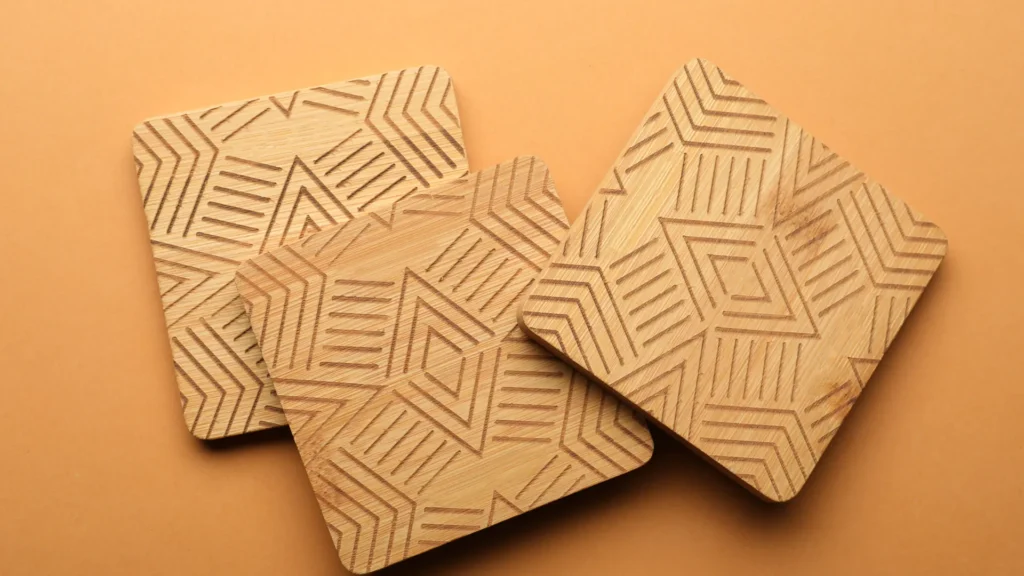

Choose the artwork for the mark you want to make. A photograph, a solid engraved shape, and an outline that follows a path aren’t the same job, even when they belong on the same finished object.
Raster and vector describe ways of representing graphics. They don’t, by themselves, tell you whether the laser will mark a surface or cut through the material. Check the artwork and the assigned operation together.
Identify what is in the file

LightBurn’s Images vs. Vectors guide describes raster images as grids of pixels and vectors as mathematically described lines. A photograph is a familiar raster example. A path drawn from points and curves is a vector example.
In LightBurn, images are used for engraving. Vectors can be used for outlines, scoring, cutting, or filled engraving, depending on the assigned mode and the rest of the job setup. That means “vector” doesn’t automatically mean “cut this out.”
Inspect the actual objects after importing them. Don’t decide from appearance alone. A thin-looking black line could be part of a pixel image or a vector path, and those aren’t interchangeable instructions for the software.
The SVG and PNG guide explains the broader file-format distinction. For laser work, take the next step and check what the imported object is being asked to do.
Give each part a stated purpose
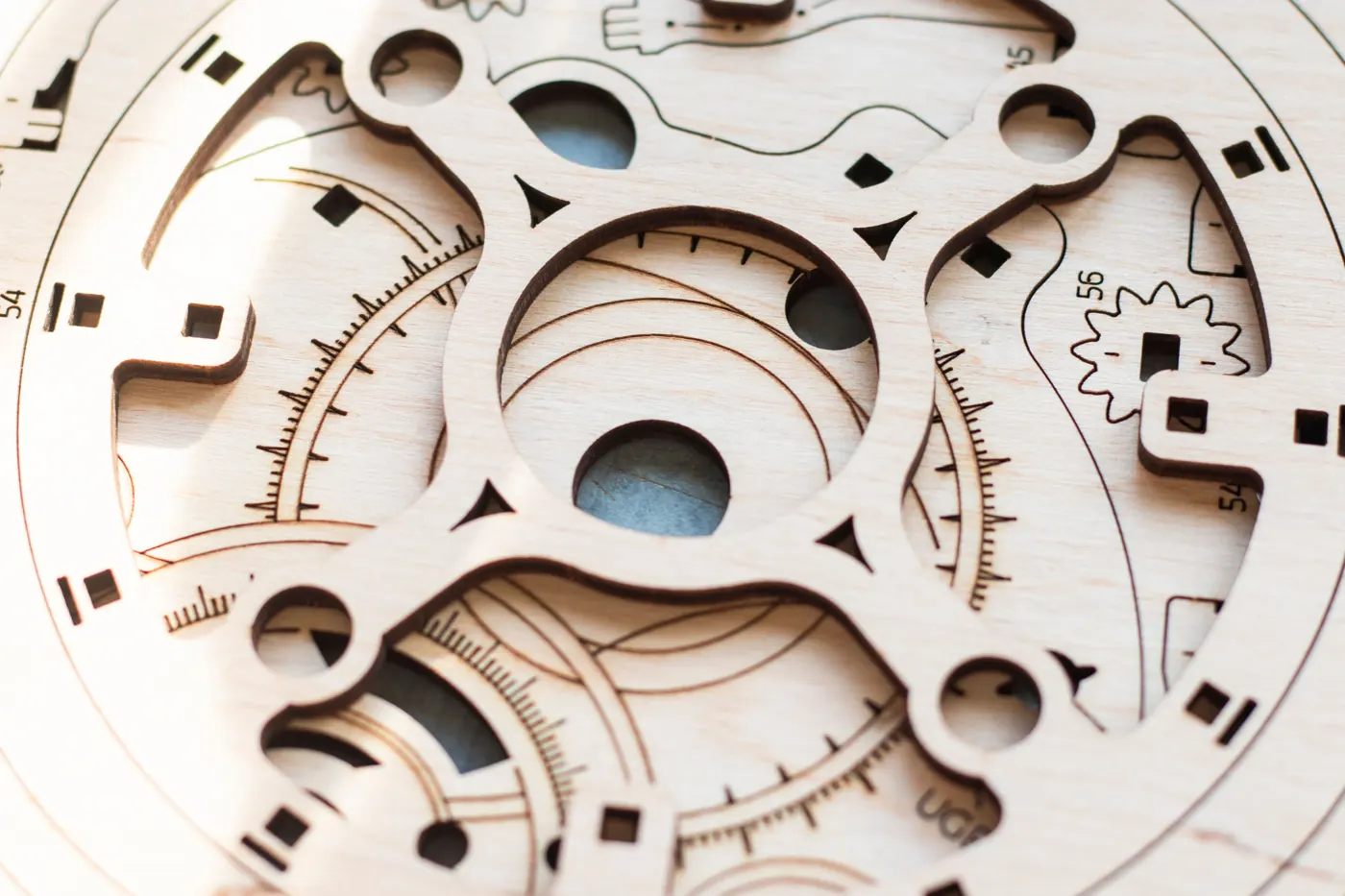
Consider a hypothetical decorative plaque with an outside shape, lettering, and a photograph. Before assigning modes, write a short description of the intended result for each component:
| Component | Intended result | What to inspect |
|---|---|---|
| Outside boundary | The finished perimeter of the piece. | The path, dimensions, and assigned line operation. |
| Solid lettering | An engraved area within each letter. | Closed boundaries and the fill assignment. |
| Photograph | An engraved image with tonal detail. | Image preparation, placement, and image-mode settings. |
This is a planning example, not a tested machine setup. It helps separate the decisions that can get hidden when someone calls the whole file “the design.”
Keep an editable master before preparing the production copy. If you convert text or trace an image, preserve the version you can still revise. LightBurn notes that tracing estimates the source image; conversion isn’t automatically an improvement.
Check the layer mode as well as the shape
LightBurn’s layer-mode explanation describes Line Mode as following vector contours and Fill Mode as engraving parallel lines within closed boundaries. Image Mode handles pixel-based graphics with additional image settings.
Its Colors and Layers guide also points out that vectors can appear as outlines in the workspace even when assigned to a fill operation. An outline on the editing screen isn’t enough to tell you the intended output.
For filled shapes, check that the boundaries are closed. Review how overlapping objects are assigned, too. LightBurn explains that shapes on the same fill layer can interact differently from shapes on separate layers. Don’t assume the layering behaves like covering one object with another in a drawing program.
Review the intended output before the machine setup
Use the software’s preview to inspect the planned paths and filled areas. LightBurn recommends previewing a simulation before starting a job. Compare that preview with the component list you wrote down.
Look at the perimeter, letter interiors, image placement, and anything that appears twice or disappears unexpectedly. Resolve an artwork problem in the file rather than hoping a machine-setting change will disguise it.
Then keep the production file, dimensions, layer assignments, and revision notes together. Artwork review is one part of preparation. The machine, approved material, operating settings, and any physical testing still need to follow the equipment manufacturer’s instructions.
References
LightBurn documentation checked October 21, 2026. This researched guide covers artwork planning, not a tested laser configuration. Stock photographs illustrate a design workspace and patterned or cut wooden objects; they are not Replicate Workshop test results.